
Most Power BI models that struggle in production fail for the same three reasons: the model is not a star schema, the same business logic has been copied into dozens of measures, and every new metric or dimension needs a new visual or a new page. None of these is a tooling limit. They are modeling decisions, and the tools to fix them (calculation groups, field parameters and a handful of DAX disciplines) have been in the product for years.
1. Shape first: the star schema is not optional
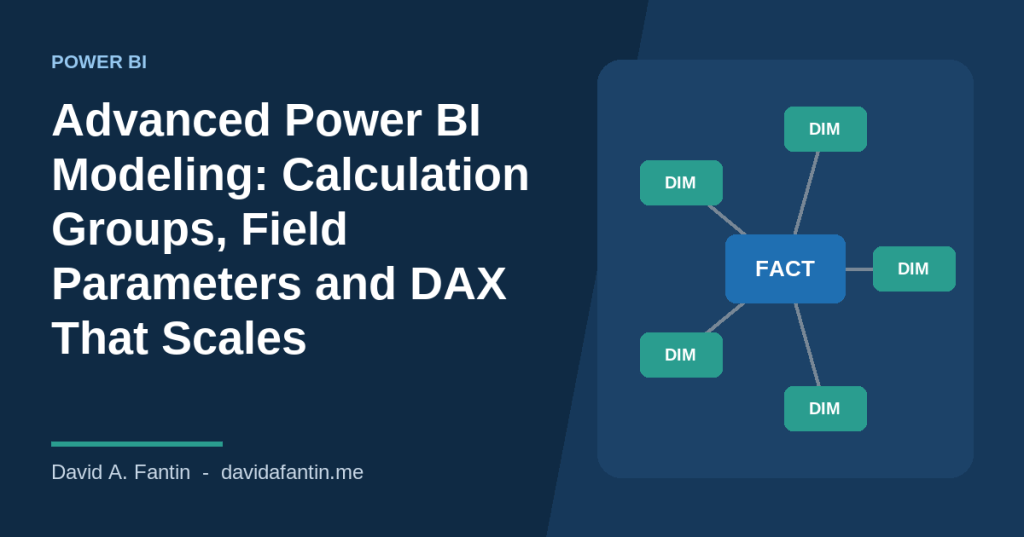
Microsoft’s own guidance is unambiguous: a star schema, with narrow fact tables surrounded by descriptive dimension tables, is the model shape Power BI is designed for, and it is the single biggest lever on both performance and usability [1]. A fact table should hold keys and numeric measures at one grain. Dimensions hold the descriptive attributes and the hierarchies users slice by. Relationships should be one-to-many, single direction, from dimension to fact.
Where this goes wrong in practice:
- Importing OLTP tables as they are. An ERP’s order header, order line, customer, address and status tables become a snowflake with bidirectional filters to make the visuals work. Flatten the snowflake into a single customer dimension and keep order line as the fact.
- Mixed grain in one fact. Budget by month and actuals by day in one table produces either double-counting or blank rows. Keep them as two facts that share dimensions, and compute variance in measures.
- No date dimension. Time intelligence functions require a marked date table with contiguous dates [1]. Build one in Power Query or SQL, never with
CALENDARAUTO()on a model that will outlive you.
If you inherit a model that is not a star, fix the shape before you touch a single measure. Every other technique in this article assumes it.
2. Calculation groups: write time intelligence once
A model with 30 base measures and the usual time-intelligence variants (YTD, prior year, year-over-year change, rolling 12 months) ends up with 150 measures if each variant is written by hand. Calculation groups apply a calculation item, such as “YTD”, to whatever measure is in context, so the 30 base measures stay 30 [2]. Power BI Desktop has supported creating them natively in the model view since 2024; before that you needed Tabular Editor.
A minimal time-intelligence calculation group looks like this:
-- Calculation group: Time Calc
-- Item: Current
SELECTEDMEASURE()

-- Item: YTD
CALCULATE( SELECTEDMEASURE(), DATESYTD( 'Date'[Date] ) )

-- Item: Prior Year
CALCULATE( SELECTEDMEASURE(), SAMEPERIODLASTYEAR( 'Date'[Date] ) )

-- Item: YoY %
VAR _cur = SELECTEDMEASURE()
VAR _py  = CALCULATE( SELECTEDMEASURE(), SAMEPERIODLASTYEAR( 'Date'[Date] ) )
RETURN DIVIDE( _cur - _py, _py )
Three disciplines keep calculation groups from becoming a trap:
- Set the format string on the item, not the measure. The “YoY %” item should carry a percentage format string expression so a currency measure renders as a percentage when that item is selected. Dynamic format strings are part of the calculation-item definition [2].
- Guard non-numeric measures. A text measure such as a headline label will break when a time item is applied. Wrap items with
IF( ISNUMERIC( SELECTEDMEASURE() ), ..., SELECTEDMEASURE() )or exclude the measure withSELECTEDMEASURENAME(). - Set precedence when you have more than one group. A currency-conversion group and a time group interact; precedence decides which applies first [2]. Document the decision in the model.
3. Field parameters: one visual, many metrics
Field parameters let a report reader choose which measures or which dimension columns a visual uses, from a slicer. One line chart can switch between revenue, margin and volume; one matrix can switch its rows between customer, lane and commodity. The report stops growing a page per metric. Field parameters are created from the Modeling ribbon in Power BI Desktop and generate a table with a calculated column of the field references; they cannot be created in DAX query view, so plan them as a build step, not a script [3].
Two practical notes. First, field parameters respect the selected calculation item, so a reader can pick “Margin” and “YoY %” together. Second, add a sort order column to the parameter table so the slicer lists metrics in the order the business reads them, not alphabetically.
4. DAX disciplines that keep models fast
| Discipline | Why it matters |
|---|---|
Use variables (VAR) for every intermediate result | Evaluated once, readable, and the only way to reuse a filtered value without re-running the filter. |
Prefer DIVIDE() over / | Handles divide-by-zero without an IF, which keeps the formula engine out of the loop. |
Filter columns, not tables, inside CALCULATE | FILTER( ALL( 'Date' ), ... ) materializes the whole table; 'Date'[Year] = 2026 is a column predicate the storage engine can push down. |
| Avoid bidirectional relationships | They create ambiguity and force extra joins; use CROSSFILTER() inside a specific measure when you truly need it [1]. |
| Hide keys, set summarization to “Do not summarize” on numeric keys | Prevents implicit measures and accidental sums of IDs. |
| Mark the date table and disable auto date/time | Auto date/time adds a hidden calendar per date column and bloats the model [4]. |
Microsoft’s optimization guide frames performance as four layers: data source, model, visuals and environment [4]. Most of the wins are in the model layer, and most of those are shape and cardinality: remove columns you do not use, reduce high-cardinality columns (datetime to date, GUIDs out), and keep the fact table narrow.
5. Visual calculations: the right tool for running totals and ranks
Not everything belongs in the model. Running totals, rank within a visual, percent of parent and moving averages depend on the visual’s own axis, which is why they were always awkward in measures. Visual calculations run on the visual’s data and expose RUNNINGSUM, RANK, MOVINGAVERAGE and PREVIOUS with AXIS, RESET and PARTITIONBY parameters [5]. Use them for presentation arithmetic; keep business definitions (what counts as revenue, what the fiscal year is) in measures where they can be governed and reused.
6. Composite models and storage modes
When the model is too large to import or the source changes faster than a refresh schedule, mix storage modes. A composite model can hold imported dimensions alongside a DirectQuery or Direct Lake fact, and Microsoft documents the relationship, performance and security trade-offs that come with it [6]. The rule of thumb I use: import anything that fits and changes daily or slower; DirectQuery only the fact that must be live; and set dimensions that join to the live fact to Dual so the engine can choose the fast path.
7. Treat the model as code
Tabular Model Definition Language (TMDL) is a readable, indentation-based text format for the whole semantic model: tables, measures, relationships, roles and calculation groups [7]. Saving a project in TMDL puts the model in source control, makes measure changes reviewable in a pull request, and makes it possible to lint for the disciplines above. If you do only one thing from this section, do that: a model in Git with a reviewer is worth more than any single optimization.
Where to start on an existing model
- Draw the model. If it is not a star, make it one. (Day 1–3.)
- Replace every hand-written YTD, PY and YoY measure with one time calculation group. Delete the duplicates. (Day 4.)
- Collapse metric-per-page reports with field parameters. (Day 5.)
- Save as TMDL, commit, and run Performance Analyzer before and after to prove the change. (Day 5.)
Related reading on this site: SSRS and paginated reports for the documents that have to print, dimensional modeling in 2026 for the warehouse underneath the model, and row-level security and governance for the controls around it.
References
- Microsoft Learn, “Understand star schema and the importance for Power BI,” learn.microsoft.com/en-us/power-bi/guidance/star-schema (accessed 9 Oct 2026).
- Microsoft Learn, “Create calculation groups in Power BI,” learn.microsoft.com/en-us/power-bi/transform-model/calculation-groups (accessed 9 Oct 2026).
- Microsoft Learn, “Use composite models in Power BI Desktop” and the Modeling ribbon documentation for field parameters, learn.microsoft.com/en-us/power-bi/transform-model/desktop-composite-models (accessed 9 Oct 2026).
- Microsoft Learn, “Optimization guide for Power BI,” learn.microsoft.com/en-us/power-bi/guidance/power-bi-optimization (accessed 9 Oct 2026).
- Microsoft Learn, “Visual calculations overview,” learn.microsoft.com/en-us/power-bi/transform-model/desktop-visual-calculations-overview (accessed 9 Oct 2026).
- Microsoft Learn, “Use composite models in Power BI Desktop,” learn.microsoft.com/en-us/power-bi/transform-model/desktop-composite-models (accessed 9 Oct 2026).
- Microsoft Learn, “Tabular Model Definition Language (TMDL),” learn.microsoft.com/en-us/analysis-services/tmdl/tmdl-overview (accessed 9 Oct 2026).


